
Troubleshooting Runtime Error 339 in Legacy Rental ERP Environments
As enterprise rental businesses migrate from on-premise servers to cloud infrastructure, a common friction point is maintaining access to historical data stored in legacy ERPs.
For IT administrators attempting to run older 32-bit rental management applications (such as early versions of CounterPro or Enfinity) on modern Windows 10 or Windows 11 workstations, the most frequent barrier is the missing ActiveX control error.
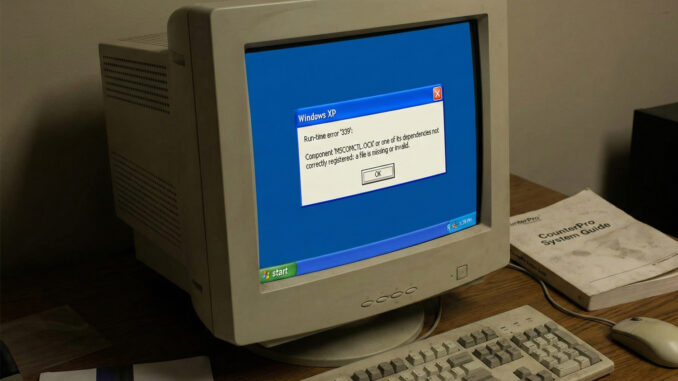
The error typically appears as a modal dialog box halting the application launch:
Run-time error ‘339’:
Component ‘MSCOMCTL.OCX’ or one of its dependencies not correctly registered: a file is missing or invalid.
This error occurs because the Microsoft Common Controls library (MSCOMCTL.OCX), which was standard in the Visual Basic 6 (VB6) runtime used to build 90% of rental software in the early 2000s, is no longer included by default in clean installations of Windows 10 and 11.
The Fix: Registering the Component via Command Line
To restore access to your legacy rental database or POS terminal, you do not necessarily need to reinstall the entire software suite. You can manually register the missing dependency using the regsvr32 command in an elevated Command Prompt.
Warning: Ensure you are logged in as an Administrator before proceeding.
Step 1: Verify the File Existence
First, check if the mscomctl.ocx file exists in your system’s WOW64 directory. Navigate to:
C:\Windows\SysWOW64\
If the file is missing, you must extract it from your original software installation media (often found in the /Bin/ or /System/ folder of your CounterPro install disc) and paste it into this folder. Do not download OCX files from untrusted third-party “DLL fixer” sites.
Step 2: The Registration Command
Once the file is in place, you must tell Windows how to use it. The regsvr32 command must be run with specific flags.
- Press Windows Key + S and search for “CMD”.
- Right-click Command Prompt and select Run as Administrator.
- Paste the following command based on your architecture:
For 64-bit Windows (Standard for most modern POS terminals):
cd C:\Windows\SysWOW64
regsvr32 mscomctl.ocx
For 32-bit Windows (Older Legacy Hardware):
cd C:\Windows\System32
regsvr32 mscomctl.ocx
Step 3: Verification
If successful, you will see a dialog box stating: “DllRegisterServer in mscomctl.ocx succeeded.”
You may now relaunch your rental management client. If the error persists, ensure that your user account has “Full Control” permissions for the application folder in Program Files (x86), as modern Windows security protocols often sandbox legacy ERPs.
Tech Note: While this fix stabilizes legacy environments, we strongly recommend documenting these dependencies as part of your eventual migration strategy. For more on the history of these systems, visit our Rental ERP & POS archives.