
Restoring Connectivity for Legacy Serial Devices on Windows 11
One of the most persistent hardware challenges in migrating rental inventory systems to modern infrastructure is the physical connection layer. While modern ERPs like InTempo are cloud-native, the physical hardware on the counter—specifically heavy-duty barcode scanners and impact receipt printers—often relies on the legacy RS-232 (Serial) standard.
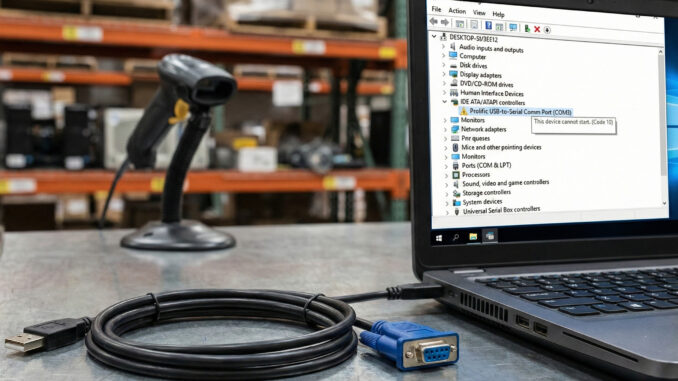
To bridge this gap, IT administrators use USB-to-Serial adapters. However, a recent Windows update has rendered thousands of these adapters useless, displaying the dreaded error in Device Manager:
Prolific USB-to-Serial Comm Port (COM3)
This device cannot start. (Code 10)
A device which does not exist was specified.
According to official Microsoft documentation, a “Code 10” error typically indicates that the device’s hardware key contains “FailReasonString” values, but in the case of rental hardware, it is almost always a driver version conflict.
This error is particularly common when attempting to connect older Symbol or Motorola barcode scanners to new Windows 11 laptops running legacy software.
The Root Cause: The “Clone” Chipset Conflict
The issue is rarely the hardware itself. The “Code 10” error is often intentional behavior by the chipset manufacturer, Prolific. Their modern drivers (versions 3.8.x and above) are designed to detect and disable “unauthorized” chips, which are unfortunately standard in many generic adapters used by equipment rental companies.
When Windows 11 automatically updates your drivers, it installs the newest version, which immediately “bricks” the adapter.
The Fix: Rolling Back to the “Golden” 2008 Driver
To restore functionality to your POS terminals without replacing hardware, you must force Windows to use the legacy driver version 3.3.2.102 (dated 2008). This version does not contain the “anti-clone” check code.
Step 1: The “Let Me Pick” Method
You often do not need to download a new file; the old driver is likely still cached on your system.
- Right-click the Start Button and open Device Manager.
- Expand Ports (COM & LPT).
- Right-click the device showing the yellow warning icon and select Update driver.
- Select Browse my computer for drivers.
- Select Let me pick from a list of available drivers on my computer.
Step 2: Select the 2008 Version
In the list, you will likely see multiple versions.
- DO NOT SELECT: Version 3.8.x (The modern, broken driver).
- SELECT: Version 3.3.2.102 (Dated 2008 or 2009).
Click Next. Windows will install the older driver, and the yellow warning icon should disappear immediately. Your barcode scanner should resume transmitting data to your ERP window.
Step 3: Prevent Windows Update Interference
Windows 11 will aggressively try to “update” this driver again tomorrow. To stop this:
- Press Windows + R, type
sysdm.cpl, and hit Enter. - Go to the Hardware tab > Device Installation Settings.
- Select No (your device might not work as expected).
This prevents Windows from automatically overwriting your working legacy drivers with broken new ones.
Hardware Note: If this software rollback does not resolve connectivity, ensure your COM port settings match the configuration inside your terminal. For more on managing legacy environments, visit our Rental ERP & POS History archive.